Task 04 - Build and deploy to Azure Container Apps
Introduction
Now that you have tested the MCP server locally, it’s time to containerize it and deploy it to Azure Container Apps. This will make your MCP server accessible as a cloud-hosted endpoint.
Description
In this task, you will build a Docker image for the MCP Weather Mock server and deploy it to Azure Container Apps. You have two options for building the image: using Docker Desktop locally or using Azure Container Registry (ACR) build if you don’t have Docker installed.
Success Criteria
- You have built a Docker image for the MCP server.
- The image is pushed to Azure Container Registry.
- The MCP server is deployed and running on Azure Container Apps.
- You can access the MCP endpoint via the Container App URL.
Learning Resources
- Azure Container Apps overview
- Azure Container Registry
- Build container images in Azure Container Registry
Key Tasks
01: Set up environment variables
Define the environment variables needed for the deployment using values from your Azure Developer CLI deployment.
Expand this section to view the solution
Since you deployed resources using azd up, retrieve the environment variables from Azure Developer CLI:
Linux / macOS / Codespace (Bash):
# Load all azd environment variables
eval $(azd env get-values)

# Set additional variables for this deployment
CONTAINER_APP_NAME="mcp-weather-mock"
IMAGE_NAME="mcp-weather-mock"
IMAGE_TAG="v1"

# Assign azd outputs to simplified variable names
RESOURCE_GROUP=$AZURE_RESOURCE_GROUP
ACR_NAME=$container_registry_name
CONTAINER_APP_ENV=$container_app_environment_name
Windows (PowerShell):
# Load all azd environment variables
azd env get-values | ForEach-Object {
    if ($_ -match '^([^=]+)=(.*)$') {
        Set-Variable -Name $matches[1] -Value $matches[2]
    }
}

# Set additional variables for this deployment
$CONTAINER_APP_NAME="mcp-weather-mock"
$IMAGE_NAME="mcp-weather-mock"
$IMAGE_TAG="v1"

# Assign azd outputs to simplified variable names
$RESOURCE_GROUP=$AZURE_RESOURCE_GROUP
$ACR_NAME=$container_registry_name
$CONTAINER_APP_ENV=$container_app_environment_name
The
azd env get-valuescommand retrieves all environment variables set during yourazd updeployment, including Azure resource names, subscription details, and deployment outputs from your Bicep template.
02: Build the Docker image
You have two options for building the Docker image. Choose the option that fits your environment.
Option A: Build locally with Docker Desktop
Use this option if you have Docker Desktop or Rancher Desktop installed and running.
If you are using a GitHub Codespace, there is no docker install. Please use Option B.
Expand this section to view the solution
Navigate to the MCP Weather Mock server directory and build the image:
cd src/01-mcp-weather-mock
Linux / macOS / Codespace:
docker build -t $ACR_NAME.azurecr.io/$IMAGE_NAME:$IMAGE_TAG .
Windows (PowerShell):
docker build -t "$ACR_NAME.azurecr.io/$IMAGE_NAME`:$IMAGE_TAG" .
Verify the image was built successfully:
docker images | grep mcp-weather-mock
Option B: Build using Azure Container Registry (ACR)
Use this option if you do not have Docker Desktop installed. ACR can build Docker images directly in the cloud.
Expand this section to view the solution
Navigate to the MCP Weather Mock server directory:
cd src/01-mcp-weather-mock
Use the az acr build command to build the image directly in ACR. This sends the source code to Azure and builds the image in the cloud — no local Docker installation required.
Linux / macOS / Codespace:
az acr build \
  --registry $ACR_NAME \
  --resource-group $RESOURCE_GROUP \
  --image $IMAGE_NAME:$IMAGE_TAG \
  .
Windows (PowerShell):
az acr build `
  --registry $ACR_NAME `
  --resource-group $RESOURCE_GROUP `
  --image "${IMAGE_NAME}:${IMAGE_TAG}" `
  .
This command will:
- Upload the source code to ACR.
- Build the Docker image using the
dockerfilein the current directory. - Push the built image to the ACR repository.
You should see build logs streaming in the terminal, ending with a success message.
The
az acr buildcommand is ideal for CI/CD scenarios or when Docker is not available locally. It uses ACR Tasks to build the image in Azure.
03: Push the image to ACR (Local build only)
If you built the image locally (Option A), you need to push it to Azure Container Registry.
Expand this section to view the solution
If you used Option B (ACR build) in the previous step, skip this step — the image was already pushed to ACR as part of the build process.
First, log in to your Azure Container Registry:
az acr login --name $ACR_NAME
Then push the image:
Linux / macOS / Codespace:
docker push $ACR_NAME.azurecr.io/$IMAGE_NAME:$IMAGE_TAG
Windows (PowerShell):
docker push "$ACR_NAME.azurecr.io/$IMAGE_NAME`:$IMAGE_TAG"
Verify the image is in ACR:
In Azure Portal
Go to Azure Portal, Search Azure Container Registry. Then Open Repository menu. Find Your image and tag 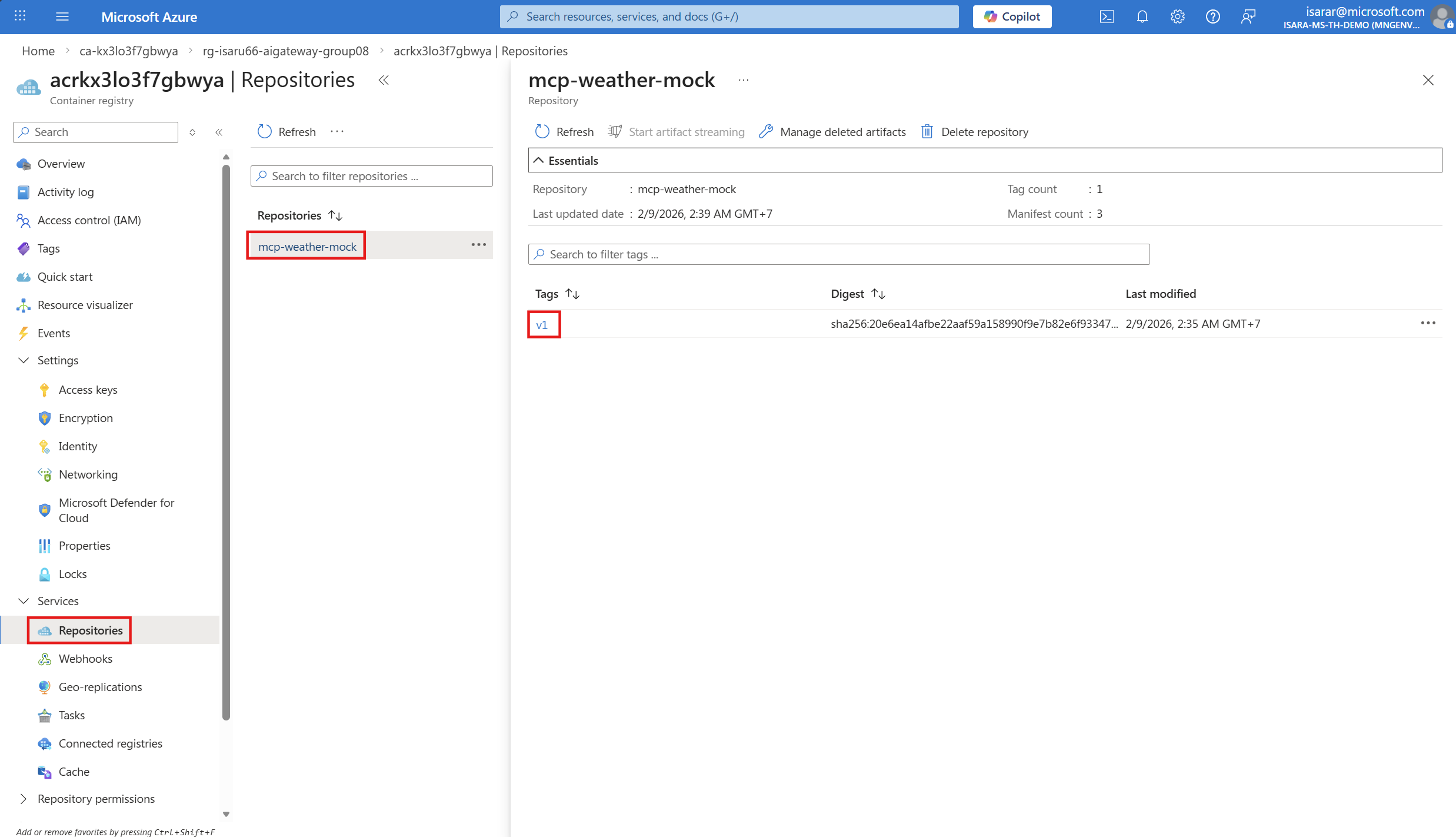
after click on tag, you will see Docker Image URL here 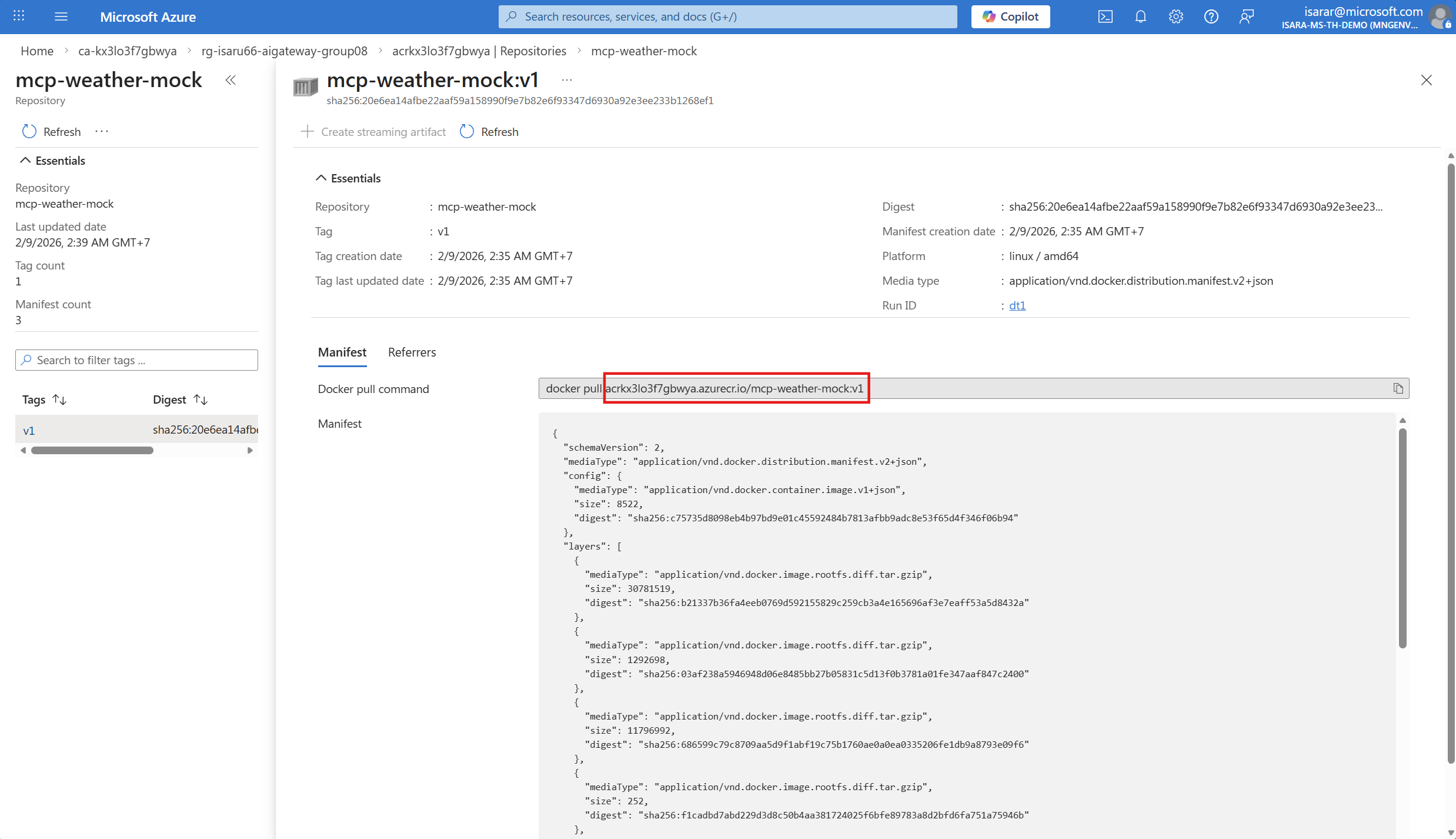
Linux / macOS / Codespace:
az acr repository list --name $ACR_NAME --output table
You should see mcp-weather-mock in the list.
Save this image URL — you’ll need it in the next step when deploying to Azure Container Apps.
04: Deploy to Azure Container Apps
Create a Container App from the image in ACR.
Expand this section to view the solution
You have two options for Deploy the container app. Choose the option that fits your environment.
Option A: In Azure Portal
Go to Azure Container App. Then click on Containers menu 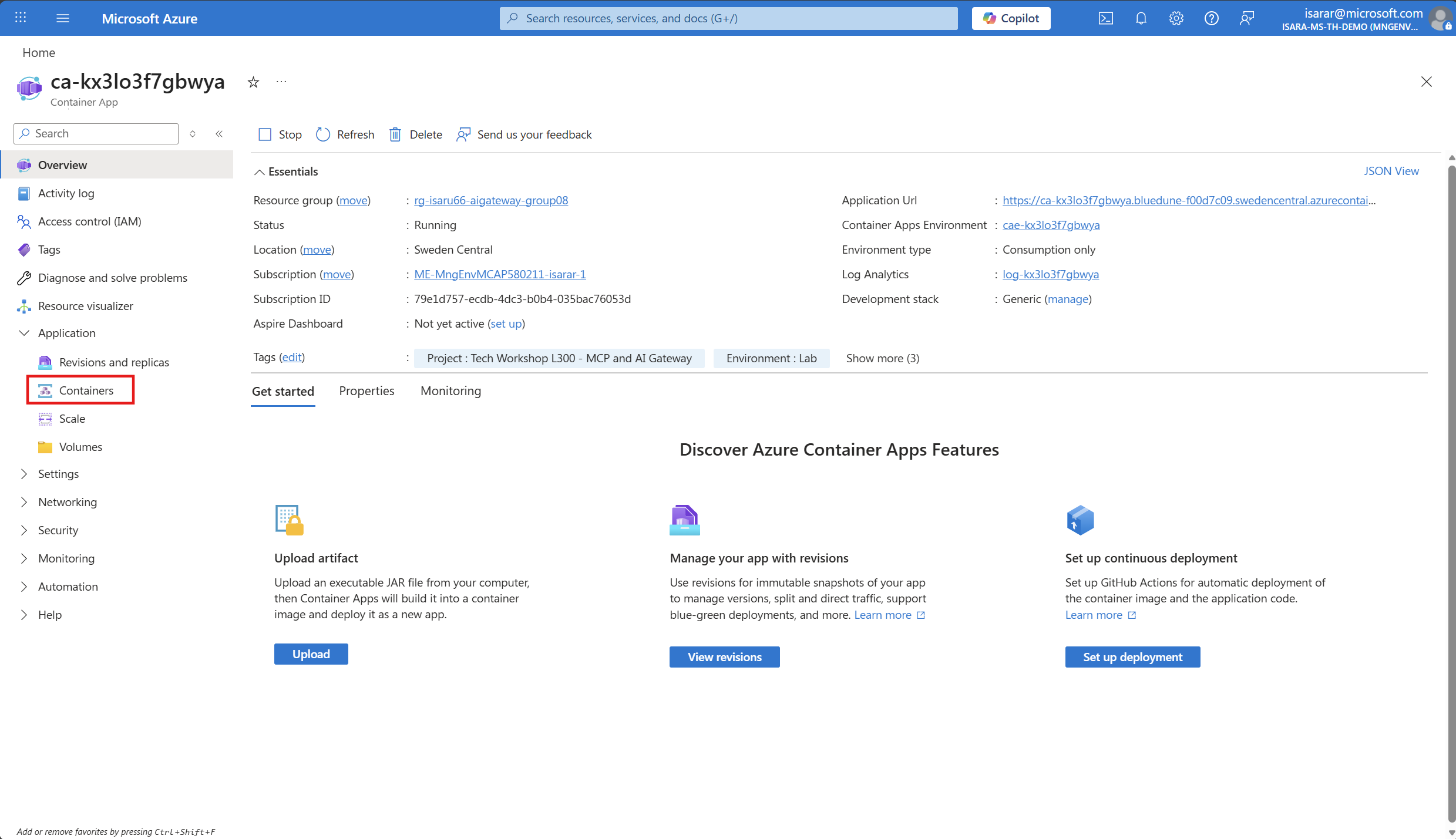
In the Container configuration:
- Select Private as the Image type
- Set Registry login server to your ACR name (e.g.,
acrkx3lo3f7gbwya.azurecr.io) - Set Image and tag to your image path, exclude ACR name (e.g.,
mcp-weather-mock:v1)
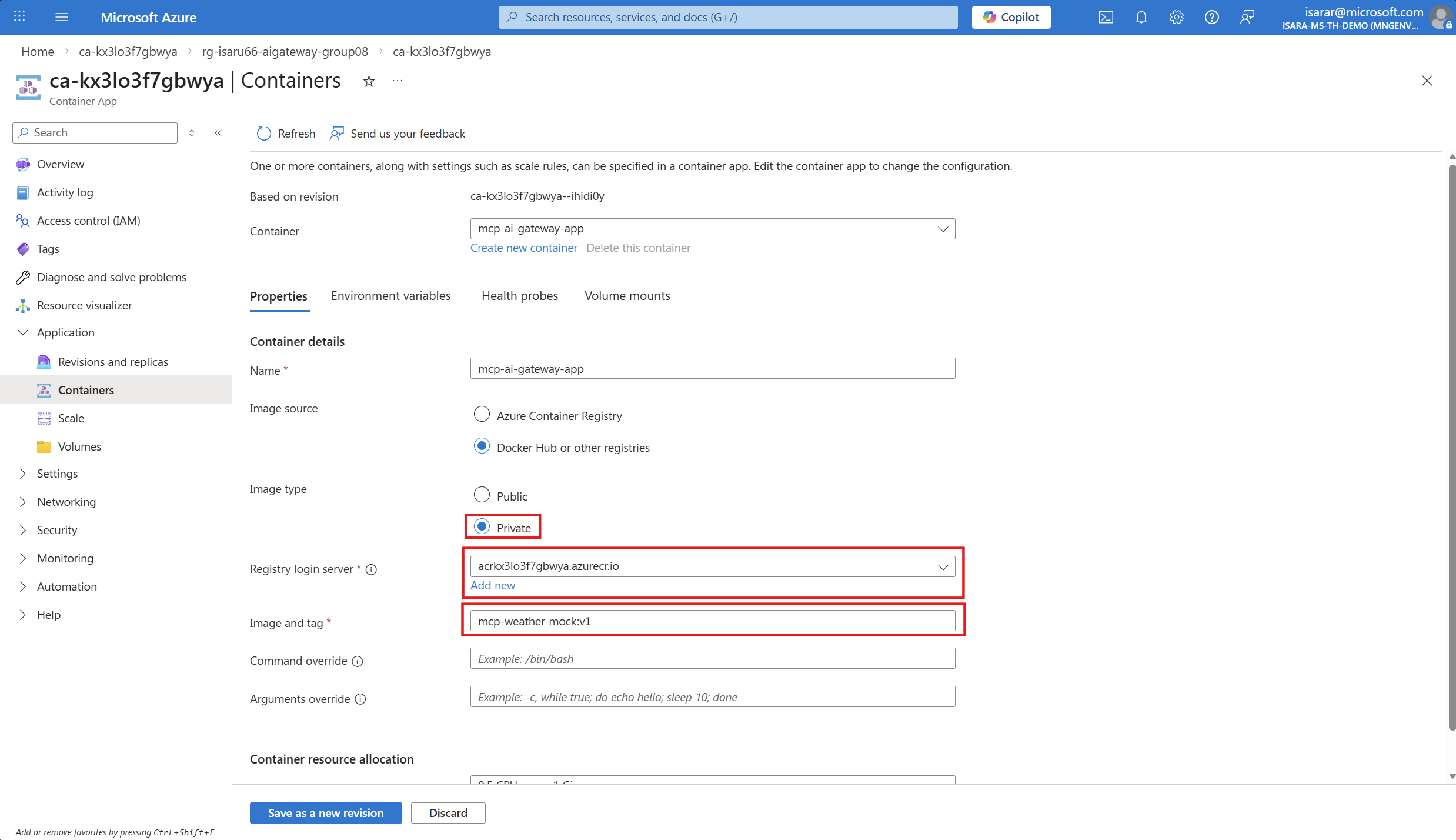
CLick Save as a new revision
Go to Ingress settings and configure:
- Enable Ingress checkbox
- Set Ingress traffic to Accepting traffic from anywhere
- Set Ingress type to HTTP
- Set Target port to
8000
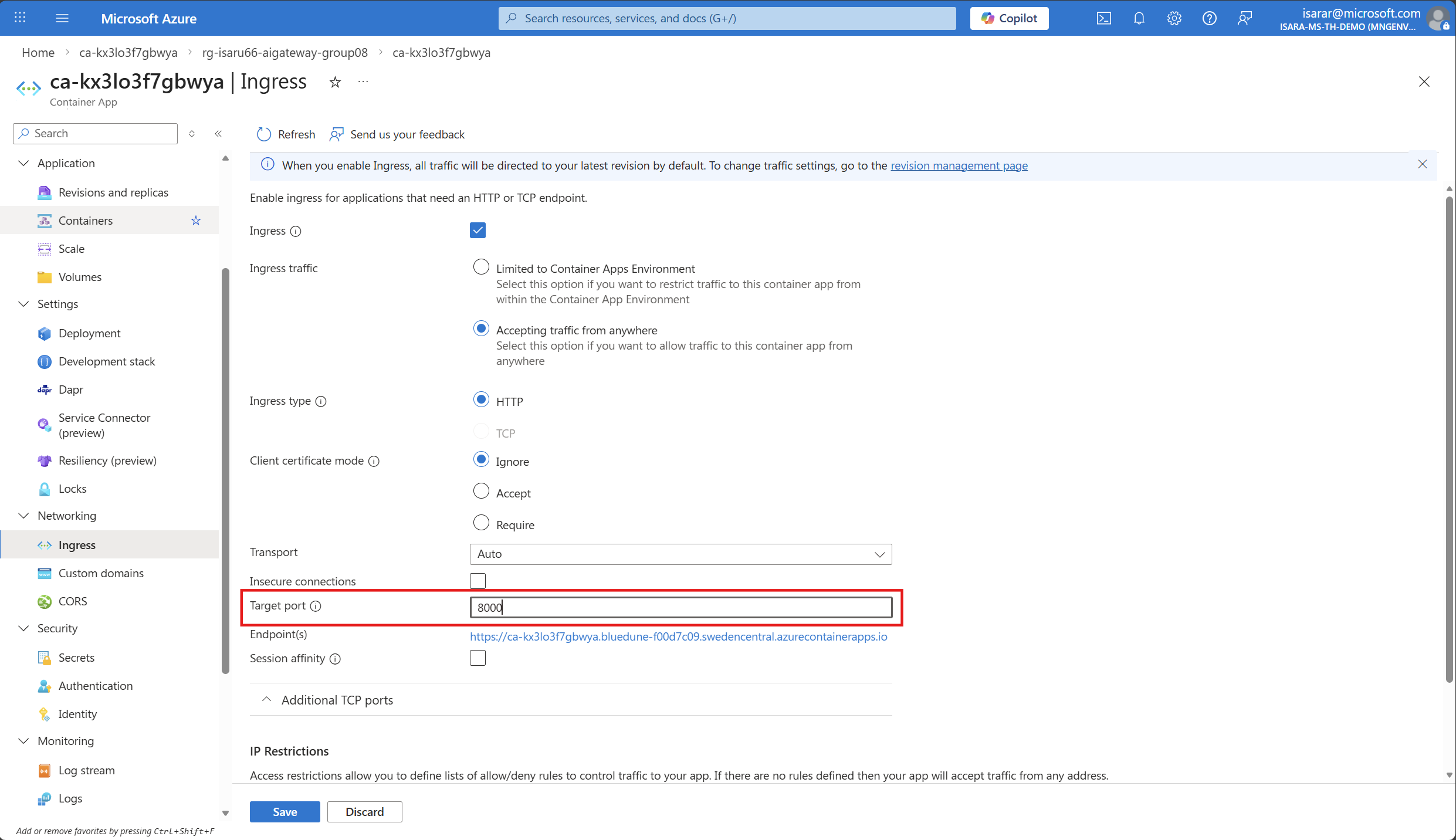
Click Save to save the change
Option B: Use Azure CLI
Linux / macOS / Codespace:
az containerapp create \
  --name $CONTAINER_APP_NAME \
  --resource-group $RESOURCE_GROUP \
  --environment $CONTAINER_APP_ENV \
  --image $ACR_NAME.azurecr.io/$IMAGE_NAME:$IMAGE_TAG \
  --registry-server $ACR_NAME.azurecr.io \
  --target-port 8000 \
  --ingress external \
  --min-replicas 0 \
  --max-replicas 3
Windows (PowerShell):
az containerapp create `
  --name $CONTAINER_APP_NAME `
  --resource-group $RESOURCE_GROUP `
  --environment $CONTAINER_APP_ENV `
  --image "$ACR_NAME.azurecr.io/$IMAGE_NAME`:$IMAGE_TAG" `
  --registry-server "$ACR_NAME.azurecr.io" `
  --target-port 8000 `
  --ingress external `
  --min-replicas 0 `
  --max-replicas 3
After the deployment completes, get the application URL:
Option A: In Azure Portal
your application url is here
Option B: Use Azure CLI
Linux / macOS / Codespace:
az containerapp show \
  --name $CONTAINER_APP_NAME \
  --resource-group $RESOURCE_GROUP \
  --query "properties.configuration.ingress.fqdn" \
  --output tsv
Windows (PowerShell):
az containerapp show `
  --name $CONTAINER_APP_NAME `
  --resource-group $RESOURCE_GROUP `
  --query "properties.configuration.ingress.fqdn" `
  --output tsv
The output will be a URL like mcp-weather-mock.<region>.azurecontainerapps.io.
05: Verify the deployment
Test the deployed MCP server to ensure it is working correctly.
Expand this section to view the solution
Using the URL from the previous step, test the MCP endpoint. You can use curl, the REST Client extension, or a browser.
Quick test with curl:
curl -X POST https://<your-container-app-url>/mcp \
  -H "Content-Type: application/json" \
  -H "Accept: application/json, text/event-stream" \
  -d '{
    "jsonrpc": "2.0",
    "id": 1,
    "method": "initialize",
    "params": {
      "protocolVersion": "2024-11-05",
      "capabilities": {},
      "clientInfo": {
        "name": "test-client",
        "version": "1.0.0"
      }
    }
  }'
Test with the .http file:
You can also update the @baseUrl variable in src/01-mcp-weather-mock/test/test.http to point to your deployed Container App:
@baseUrl = https://<your-container-app-url>
Then re-run the same requests from Task 03 to verify the deployed server.
The deployed MCP server URL is your cloud-hosted MCP endpoint. You will use this URL in later exercises when configuring Azure API Management as an AI Gateway to route MCP traffic.