Task 03 - Microsoft-provided resources for training
Introduction
For this workshop, Microsoft provides limited access to the following resources during the training session. These resources are pre-provisioned and will be available for the duration of the workshop only.
What Microsoft provides
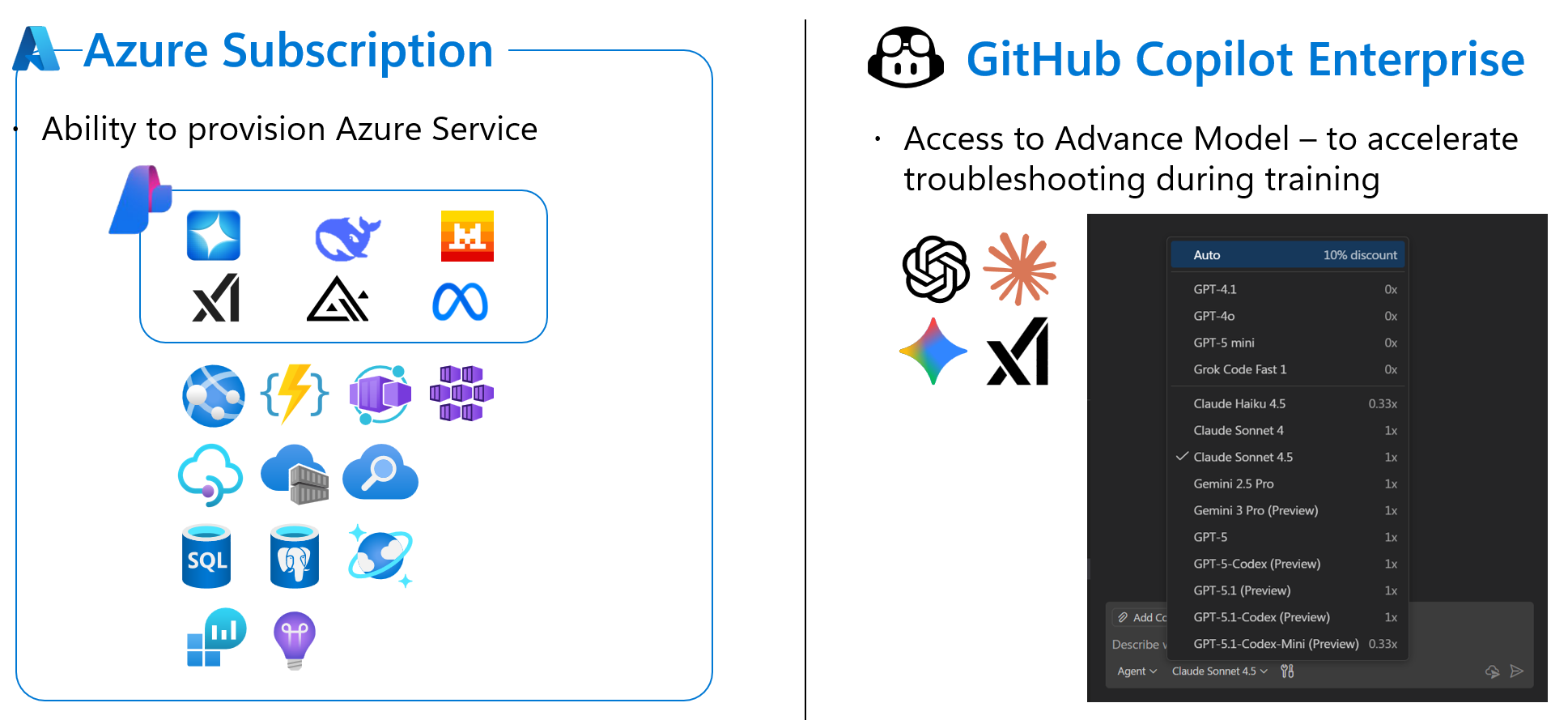
Azure Subscription
You will receive access to an Azure Subscription that allows you to provision and manage Azure services required for the workshop exercises. This includes resources such as:
- Azure API Management
- Azure Functions
- Azure App Service
- Azure Cosmos DB
- Azure Key Vault
- Azure Monitor / Application Insights
- And other services used throughout the exercises
GitHub Copilot Enterprise
You will also receive access to GitHub Copilot Enterprise (GHE), which provides access to advanced AI models to accelerate troubleshooting and development during the training. Available models include GPT-5.2-Codex, Claude Sonnet 4.5, Gemini 2.5 Pro, and more.
These resources are provided for training purposes only and have limited access. Do not use them for personal or production workloads. Access will be revoked after the training session ends.
Success Criteria
- You have created a dedicated browser profile for the training.
- You are signed in to the Azure portal with the provided training account.
- You are signed in to GitHub Enterprise with SSO authentication.
- You have GitHub Copilot Enterprise activated in VS Code.
Key Tasks
01: Create a dedicated browser profile (Recommended)
To avoid conflicts with your existing personal or work accounts, we strongly recommend creating a separate browser profile in Chrome or Edge dedicated to this training.
Expand this section to view the solution
For Microsoft Edge
- Open Microsoft Edge.
- Click on your profile icon in the top-right corner of the browser.
- Click Add profile > Add.
- Choose Start without your data and click Confirm.
- A new Edge window will open with a clean profile — use this for all training-related sign-ins.
For Google Chrome
- Open Google Chrome.
- Click on your profile icon in the top-right corner of the browser.
- Click Add (or Add another account).
- Choose Continue without an account (or sign in with the training account if applicable).
- A new Chrome window will open with a clean profile — use this for all training-related sign-ins.
Using a dedicated browser profile ensures that your training credentials (Azure, GitHub) do not interfere with your personal or corporate accounts. This prevents session conflicts and unexpected sign-out issues.
02: Sign in to Azure portal
Sign in to the Azure portal using the credentials provided by the instructor.
Expand this section to view the solution
- Open your dedicated training browser profile.
- Navigate to https://portal.azure.com.
- Enter the username and password provided by the instructor.
- Complete multi-factor authentication (MFA) if prompted — you may need the Microsoft Authenticator app.
- Once signed in, verify that you can see the training subscription by navigating to Subscriptions in the portal.
If you are prompted to set up MFA for the first time, follow the on-screen instructions to register the Microsoft Authenticator app with the training account.
03: Sign in to GitHub Enterprise (SSO)
GitHub Copilot Enterprise is provided through a GitHub Enterprise (GHE) organization. You must first authenticate via Single Sign-On (SSO) before you can use GitHub Copilot.
Expand this section to view the solution
- Open your dedicated training browser profile.
- Navigate to https://github.com.
- Sign in with the GitHub account provided by the instructor (or your own GitHub account if you have been added to the GHE organization).
- After signing in, you need to authorize SSO for the training enterprise:
- Navigate to https://github.com/enterprises/isaru66-corp/sso.
- Click Authorize to complete the SSO authentication.
- You may be redirected to a Microsoft login page — sign in with the same training credentials used for Azure.
- Once SSO is authorized, verify access by navigating to the training organization’s page on GitHub.
SSO authorization is required because GitHub Copilot Enterprise is managed through a GitHub Enterprise organization. Without completing SSO, you will not have access to GitHub Copilot Enterprise features or the advanced AI models.
04: Activate GitHub Copilot Enterprise in VS Code
After signing in to GitHub with SSO, configure VS Code/Codespace to use GitHub Copilot Enterprise.
Expand this section to view the solution
- Open VS Code.
- Go to the Extensions view by clicking the Extensions icon in the Activity Bar on the left side (or press Ctrl+Shift+X).
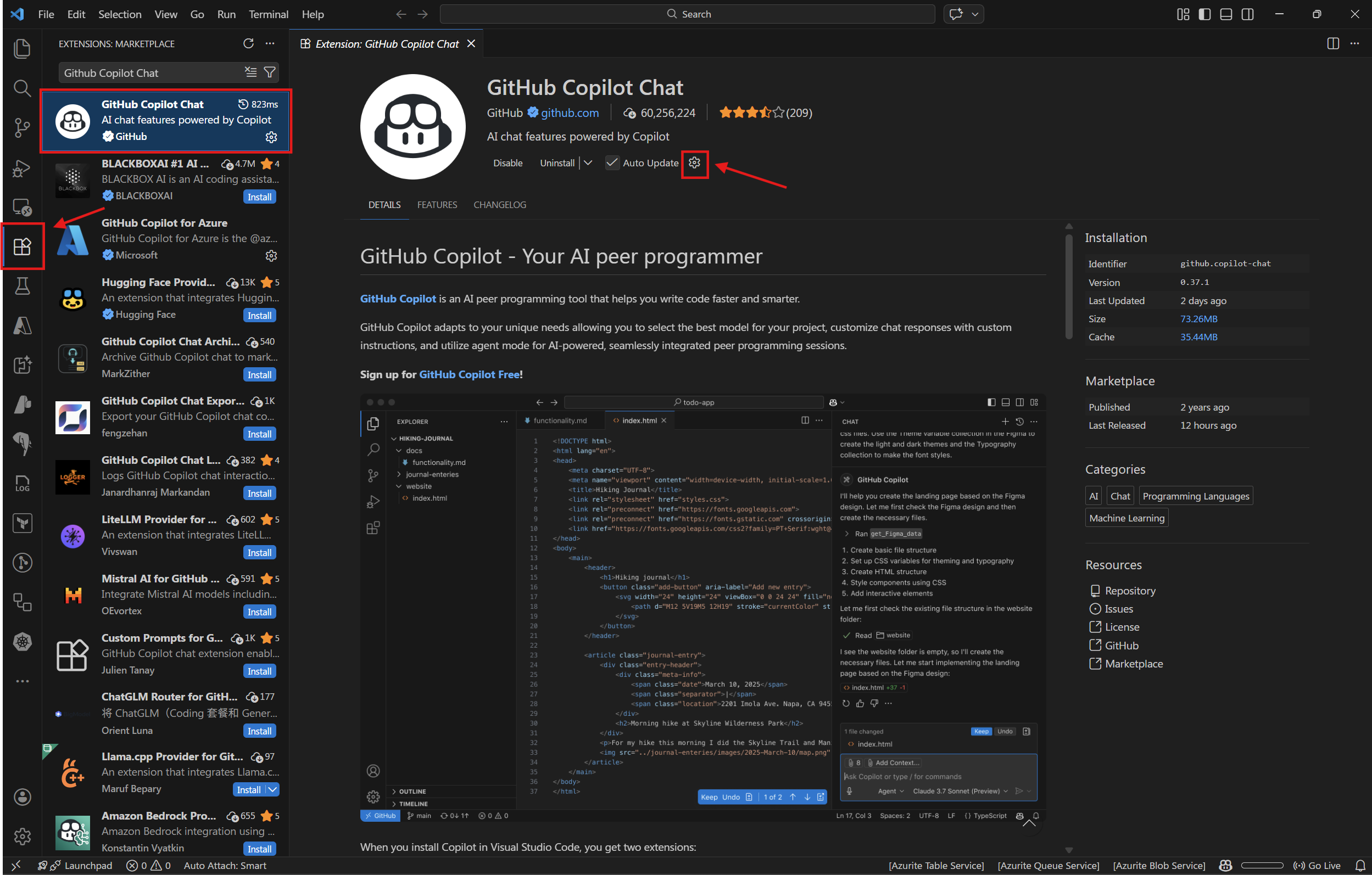
- Search for GitHub Copilot Chat in the Extensions Marketplace.
- Click on GitHub Copilot Chat by GitHub to open the extension page.
- Click Install if the extension is not already installed.
-
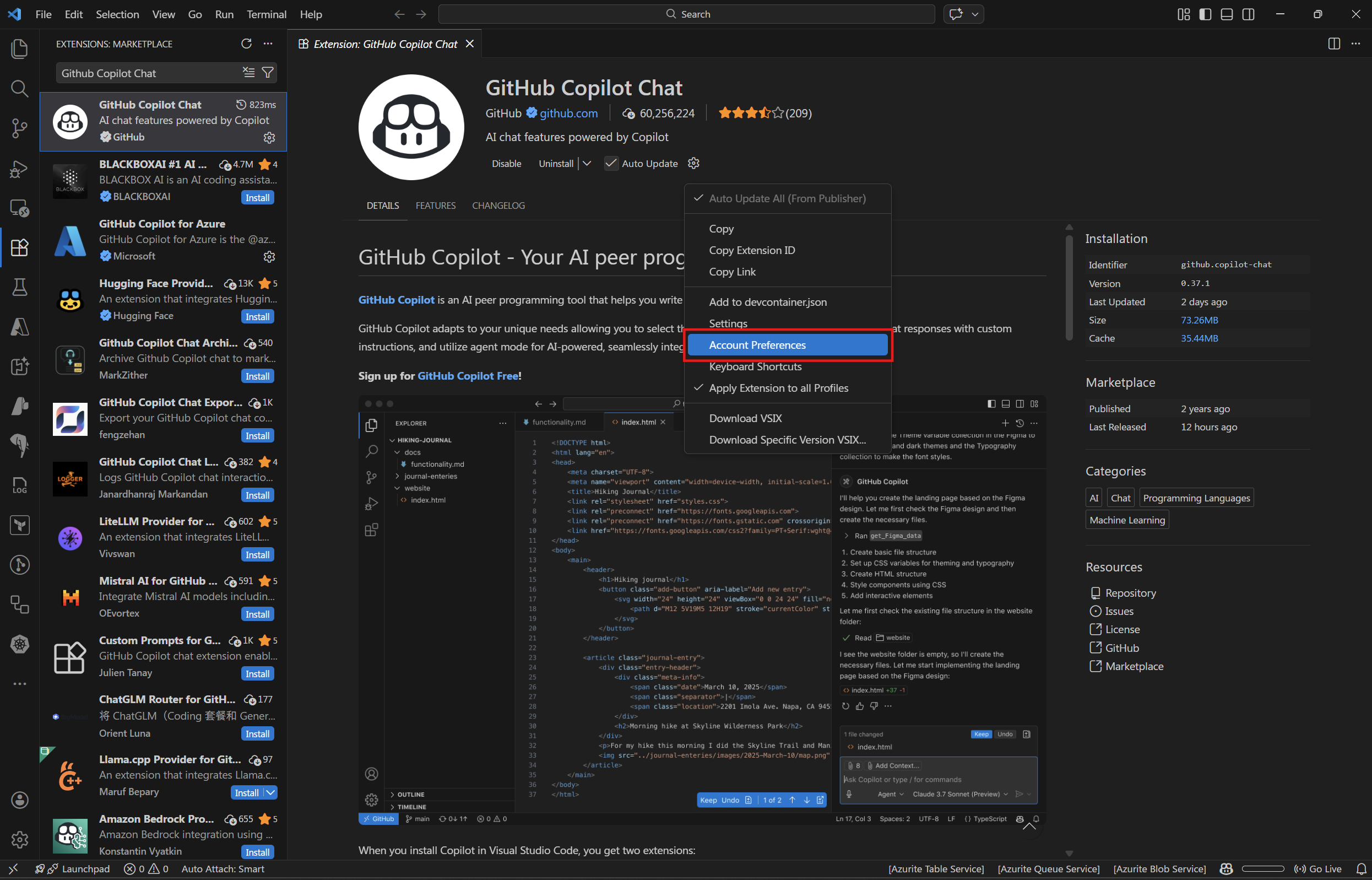
Once installed, click the gear icon (⚙️) on the extension page (next to the Disable/Uninstall buttons) and select Account Preferences.
 Select GitHub for authentication provider
 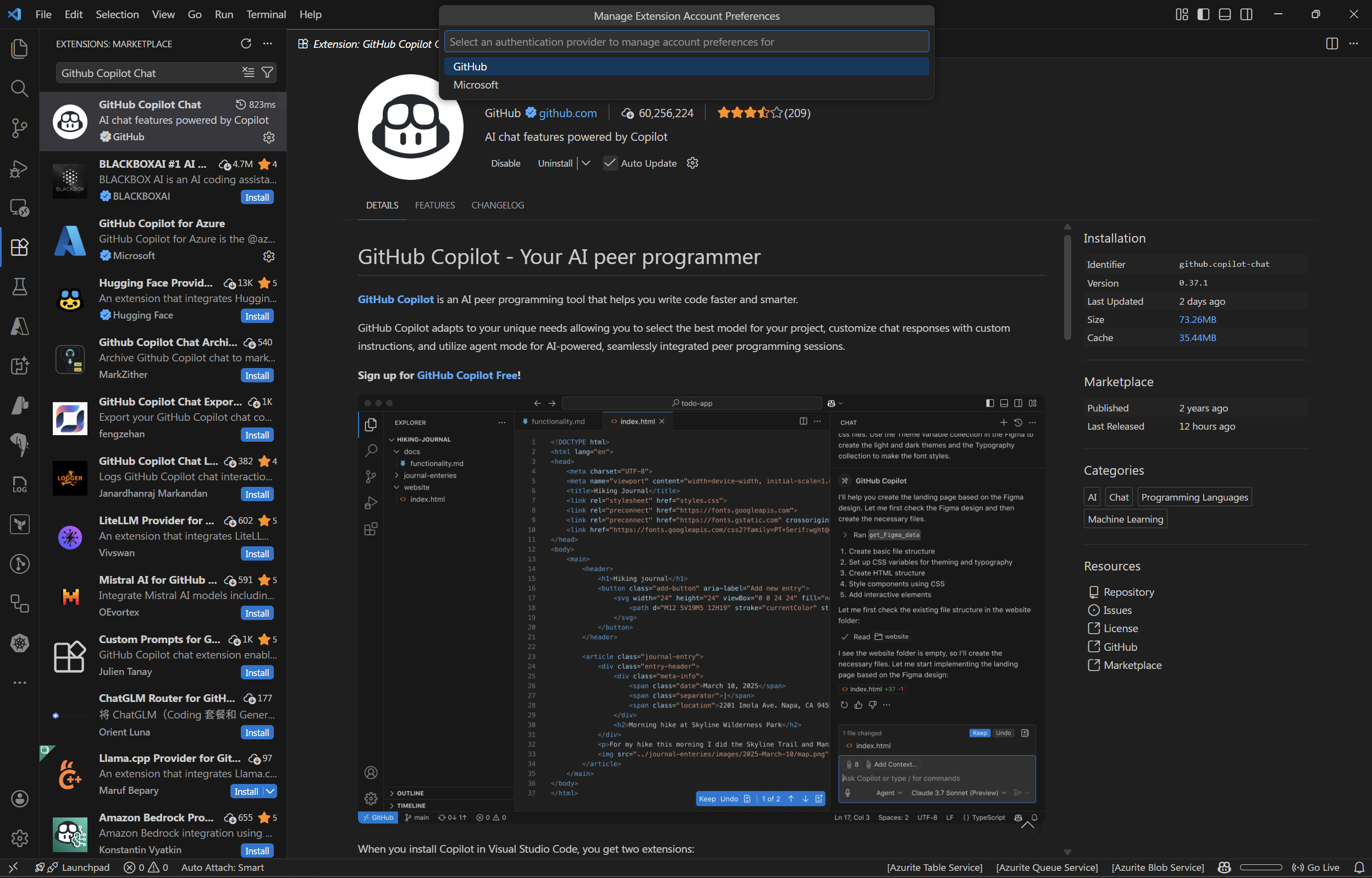 Select Use new account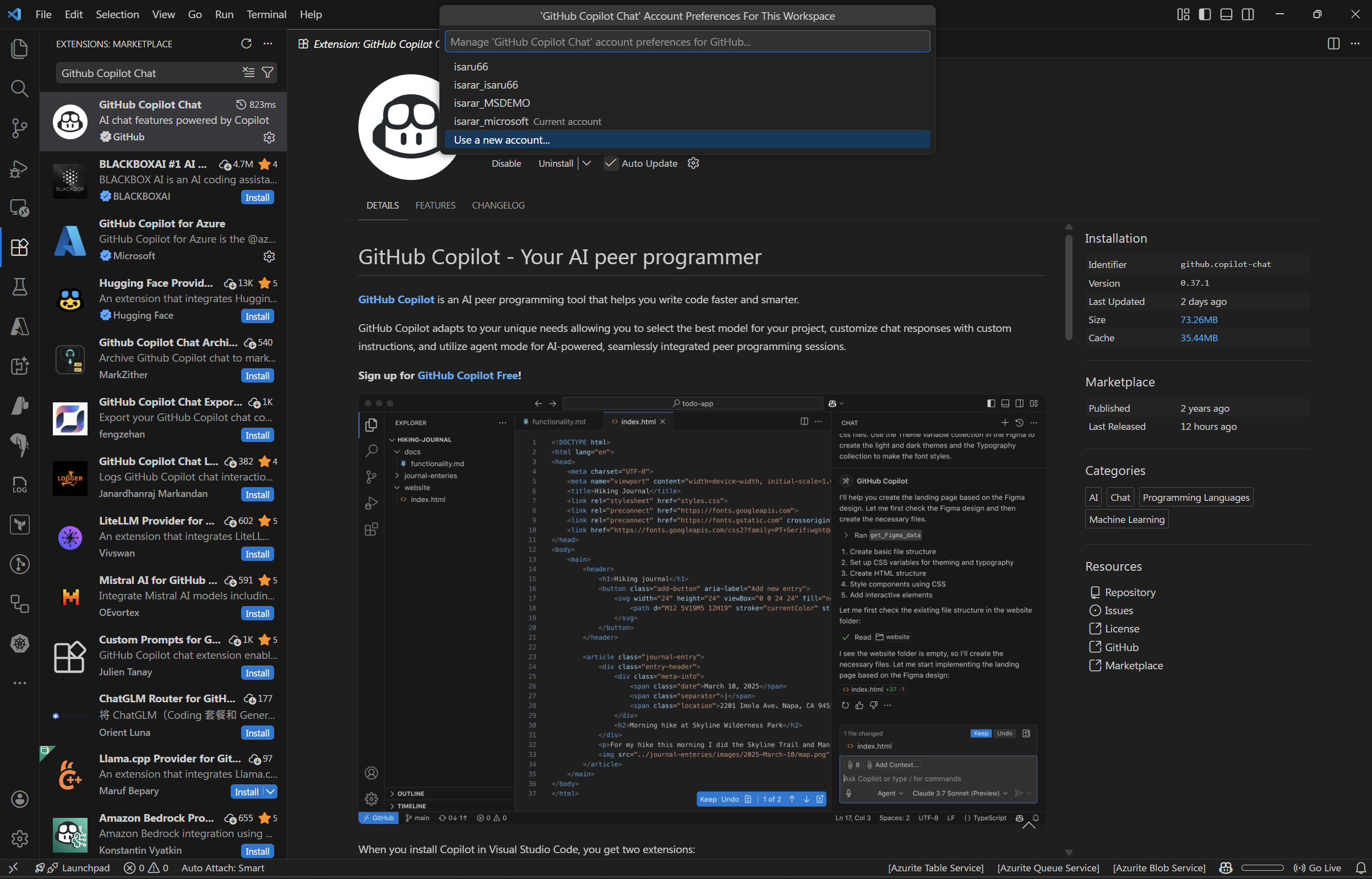
- Sign in with the same GitHub account that has SSO authorization. A browser window will open to complete the sign-in process.
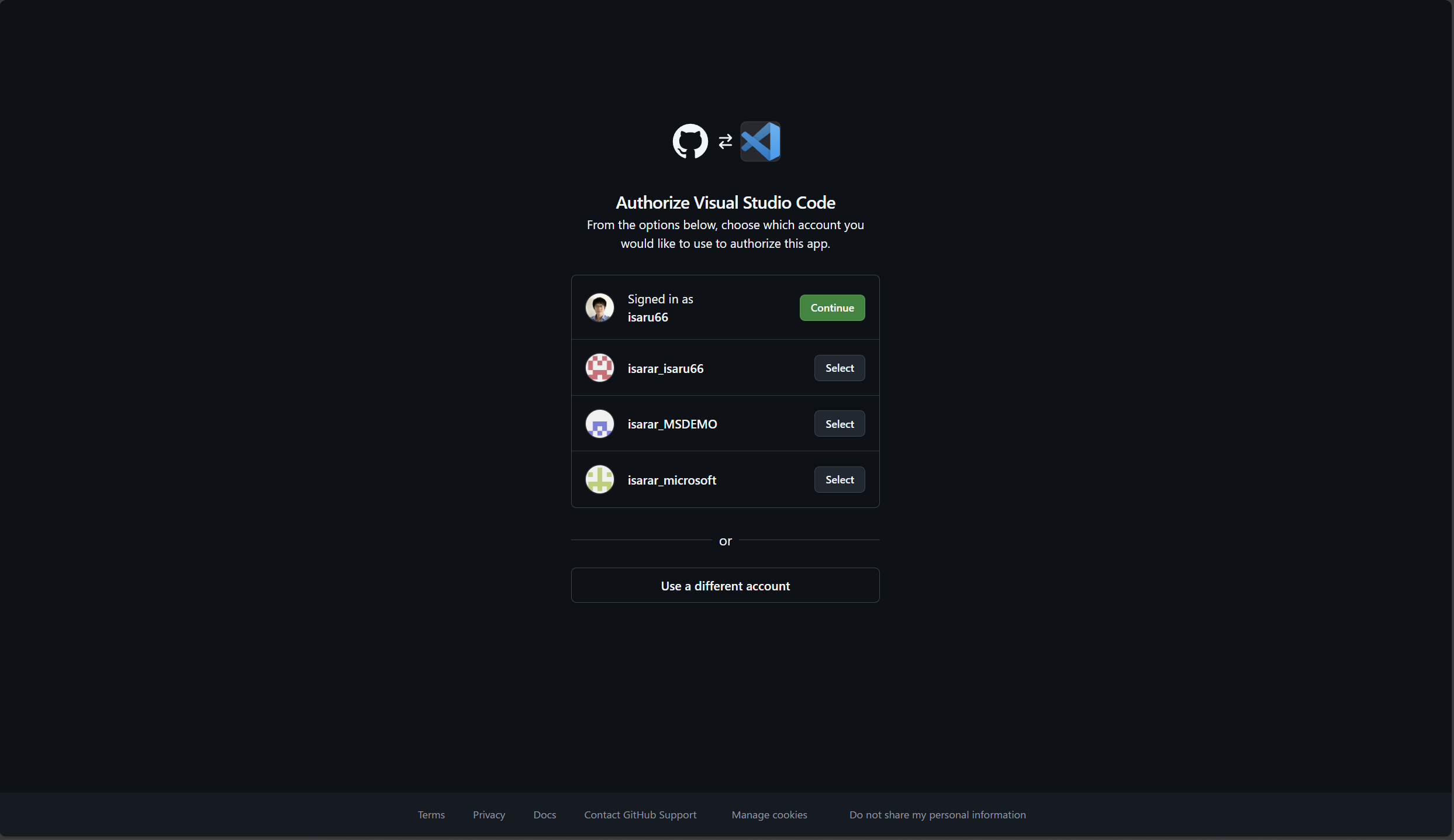
-
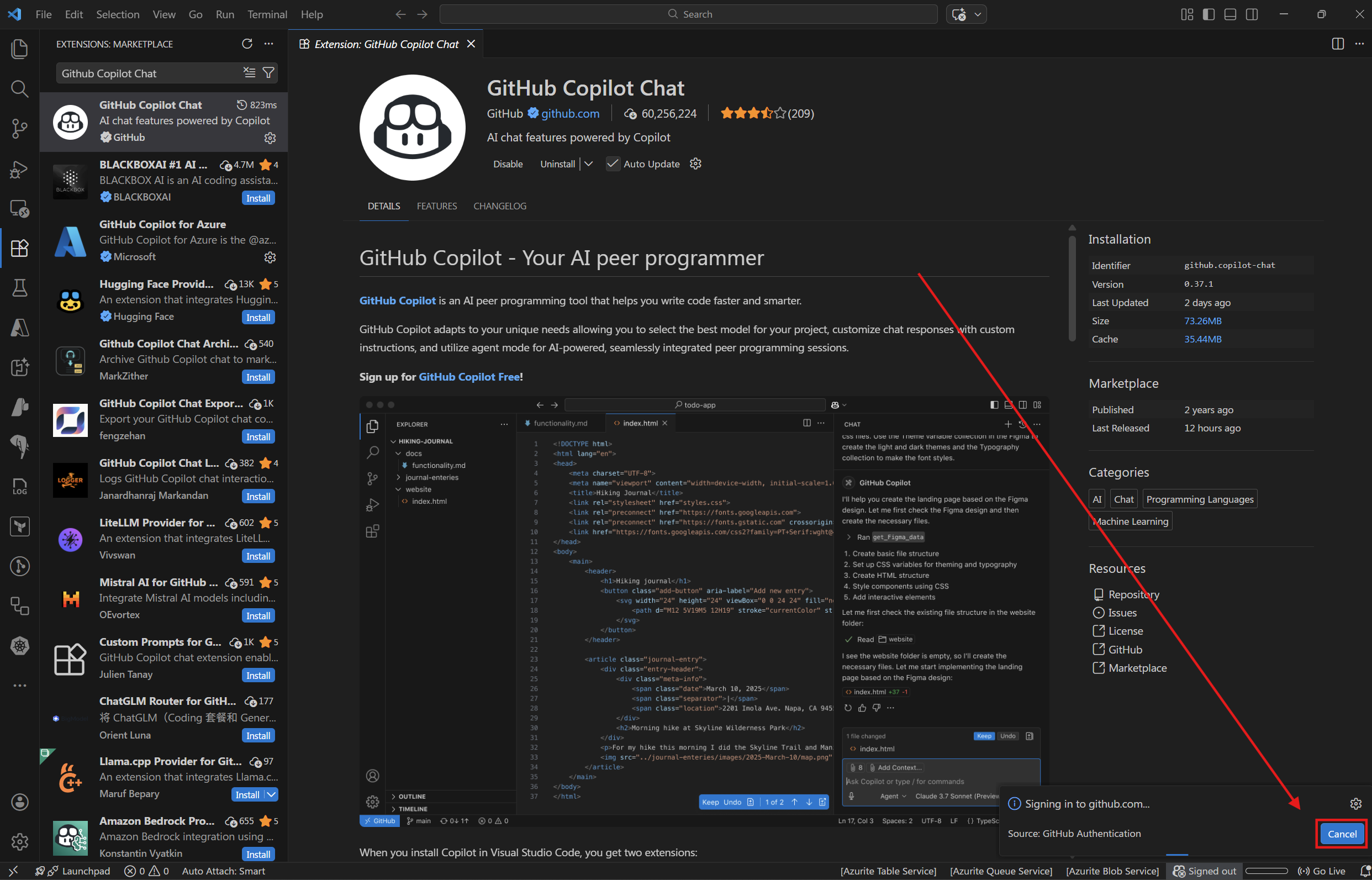
if you use seperate browser profile. Go back to VSCode. Then click Cancel
-
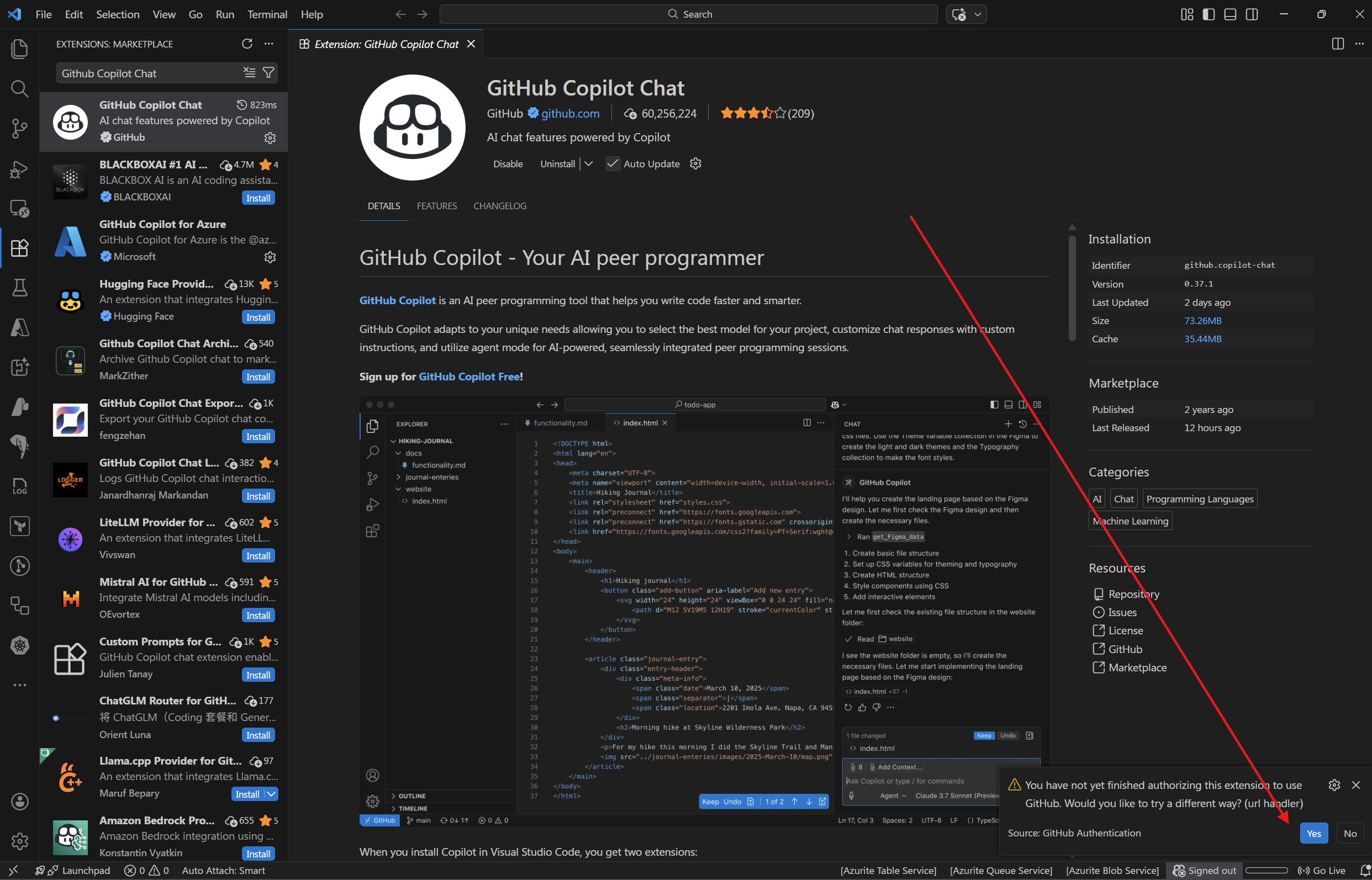
Then click Yes.
-
Then click Cancel again,
-
Until VSCode suggest to authenticate with device code. Click Yes on device code.
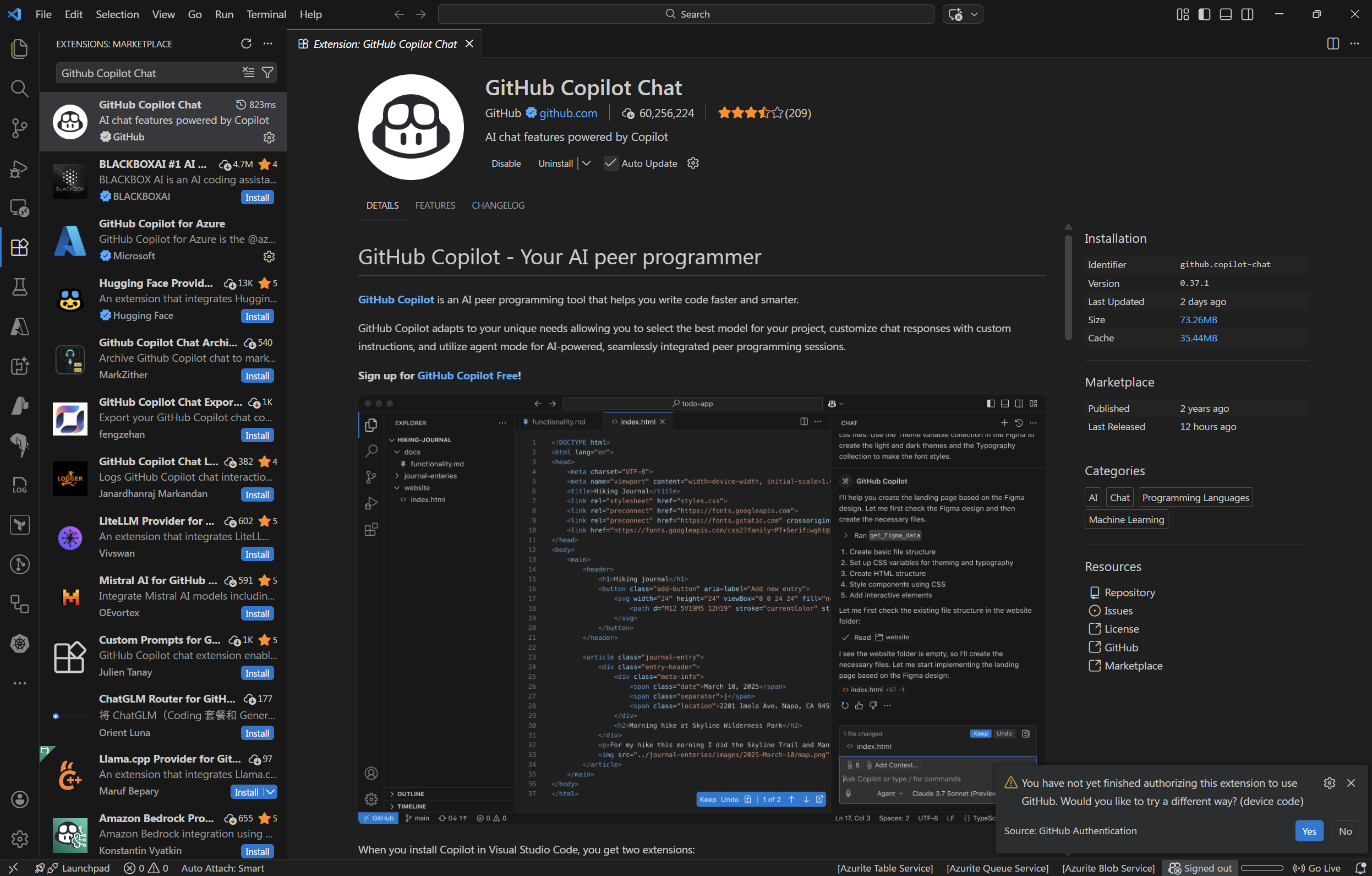
-
Copy URL, then open this URL in your seperate browser profile that login with training credential
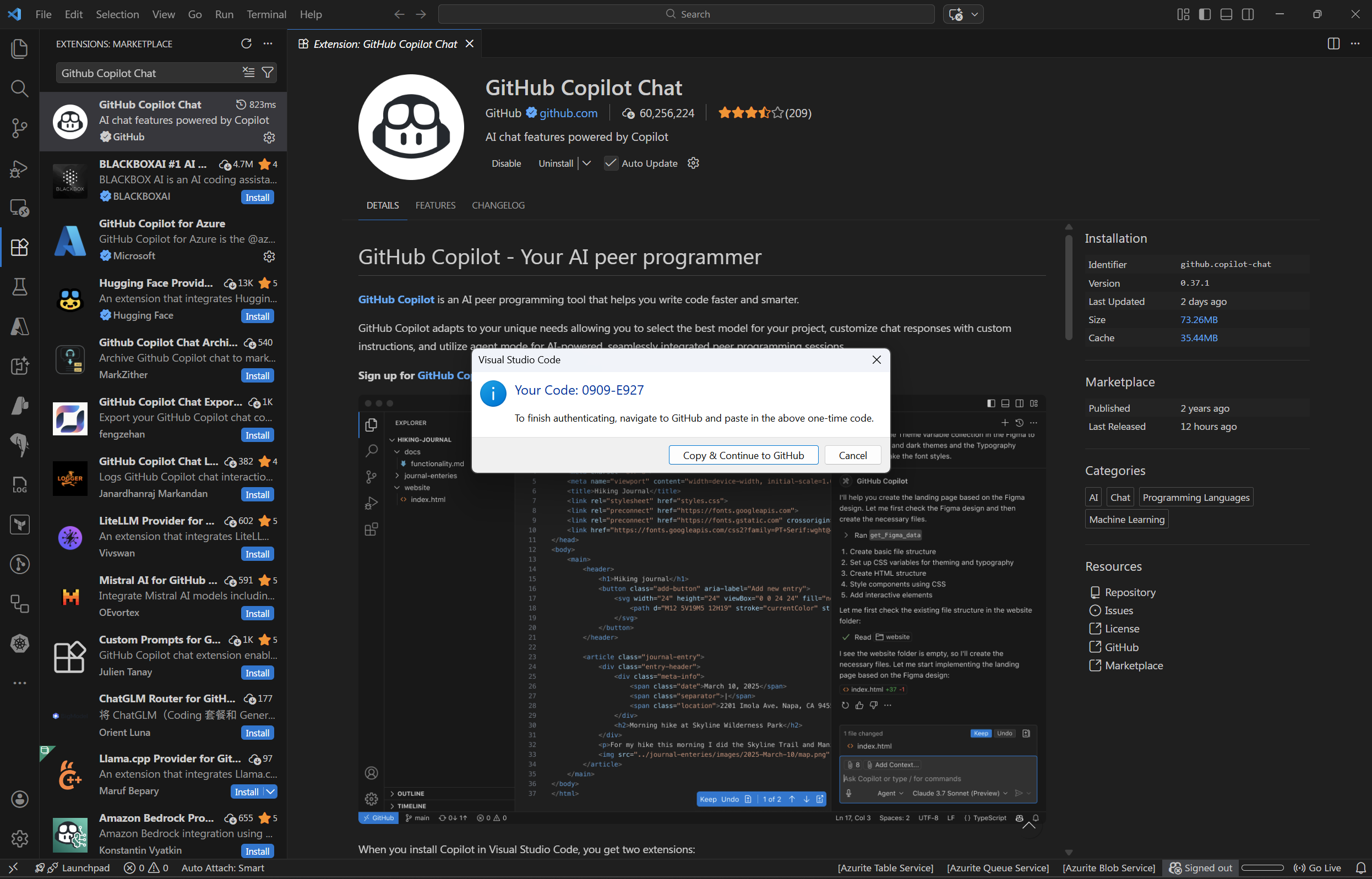
- Enter the device code.
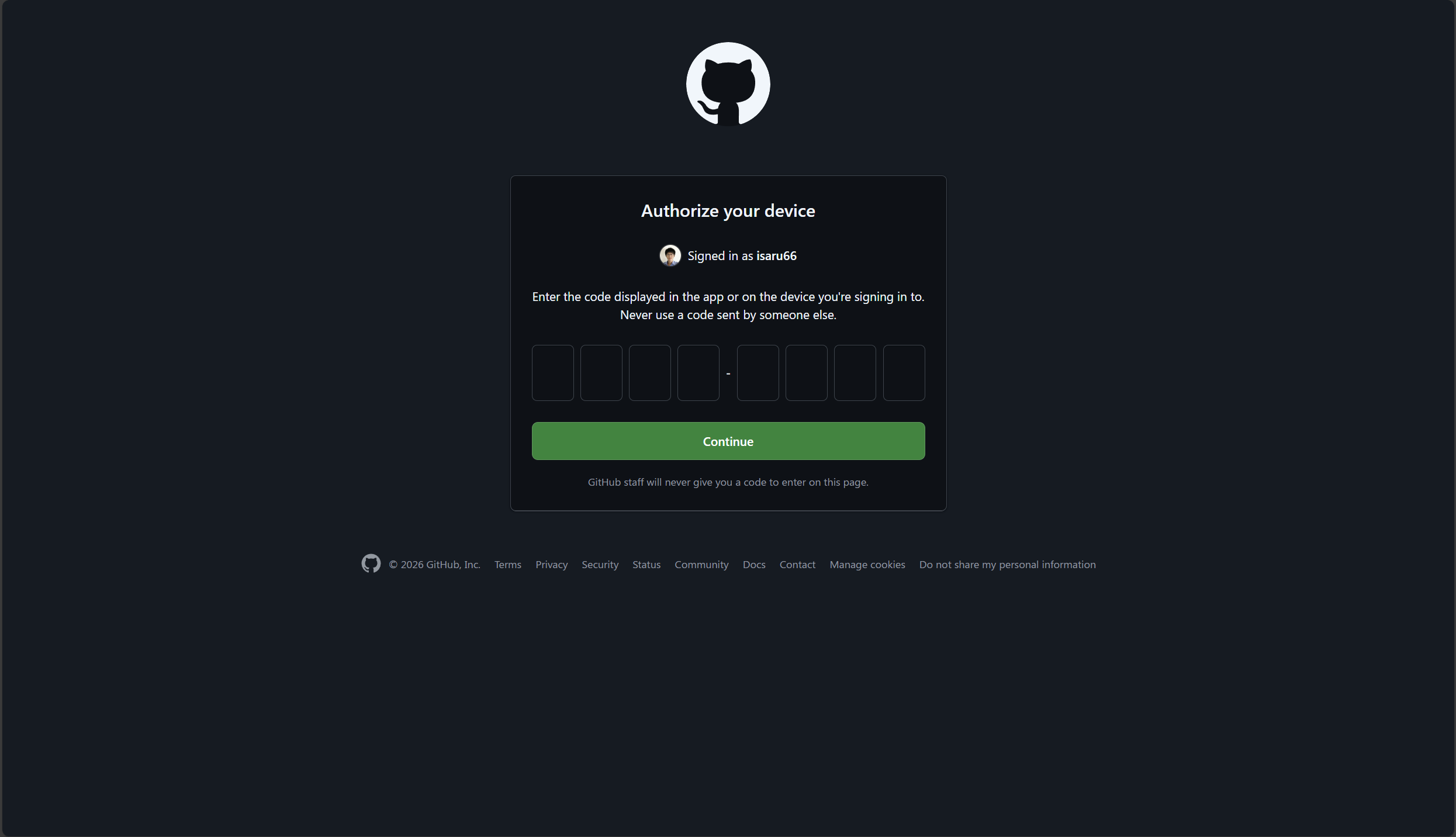
- After signing in, return to VS Code and verify that GitHub Copilot is active:
- You should see the Copilot icon in the status bar at the bottom of VS Code.
- Open the Copilot Chat panel (Ctrl+Shift+I or Cmd+Shift+I) and verify you can interact with it.
- To access advanced models, click on the model selector in the Copilot Chat panel and choose from the available models (e.g., Claude Sonnet 4.5, GPT-5.2-Codex, etc.).