Task 02 - (Optional) Test with MCP Inspector
Introduction
The MCP Inspector is a web-based tool that allows you to interactively test and debug MCP servers. In this task, you will use the MCP Inspector to connect to your running MCP server and test the available tools.
This task is only valid for users running locally. The MCP Inspector does not work with GitHub Codespaces due to network connectivity limitations. If you are using a Codespace, skip this task and proceed to Task 03.
Description
You will install and launch the MCP Inspector, connect it to your running MCP Weather Mock server, and use it to test the get_cities and get_weather tools interactively.
Success Criteria
- The MCP Inspector is running and connected to your MCP server.
- You can successfully call the
get_citiesandget_weathertools from the Inspector.
Learning Resources
Key Tasks
01: Launch MCP Inspector
Make sure your MCP server is running (from Task 01), then launch the MCP Inspector.
Expand this section to view the solution
Open a new terminal (keep the MCP server running in the other terminal) and run:
npx @modelcontextprotocol/inspector
If this is your first time running the command, you may be prompted to install the package. Type
yto confirm.
The MCP Inspector will start and display a URL in the terminal, typically:
MCP Inspector is up and running at http://localhost:6274
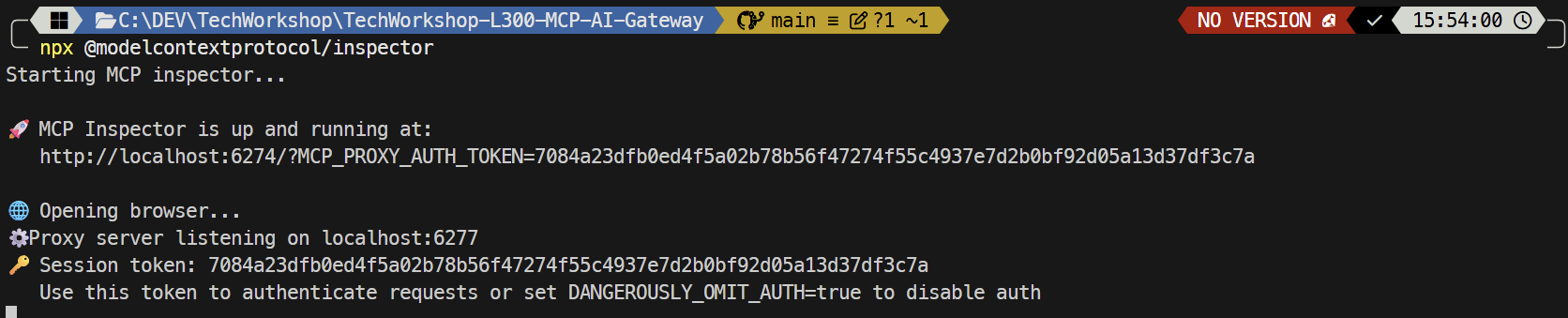
Open this URL in your browser. You should see this page. 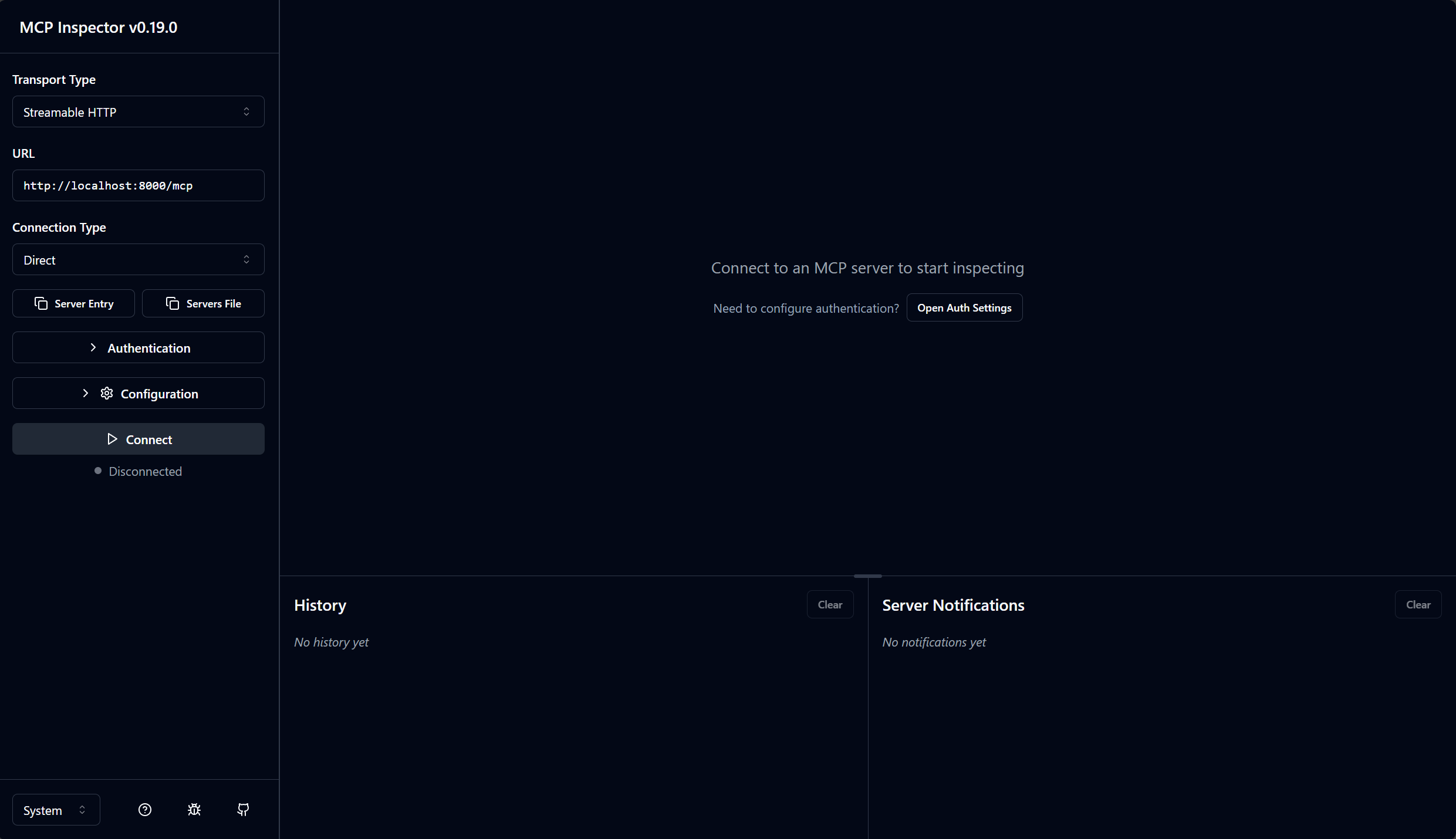
02: Connect to the MCP server
Configure the MCP Inspector to connect to your running MCP Weather Mock server.
Expand this section to view the solution
- In the MCP Inspector web UI, change the Transport Type to Streamable HTTP.
-
In the URL field, enter:
http://localhost:8000/mcp - Click Connect.
- You should see a successful connection status and the server information displayed.
03: Test the tools
Use the MCP Inspector to test the available tools.
Expand this section to view the solution
- Click on the Tools tab in the Inspector.
- You should see two tools listed:
get_citiesandget_weather.
Test get_cities:
- Click on
get_cities. - In the Arguments section, enter
thailandfor thecountryparameter. - Click Run Tool.
- You should see a list of Thai cities in the response:
['Bangkok', 'Chiang Mai', 'Phuket', 'Pattaya', 'Khon Kaen', 'Hat Yai', 'Nakhon Ratchasima', 'Chiang Rai', 'Udon Thani', 'Krabi']
Test get_weather:
- Click on
get_weather. - In the Arguments section, enter
Bangkokfor thecityparameter. - Click Run Tool.
- You should see weather information in the response, such as:
{'city': 'Bangkok', 'condition': 'Sunny', 'temperature': 28.5, 'humidity': 65.2}
The weather data is randomly generated, so the temperature, humidity, and condition values will vary with each call.